평소 애용하는 일정관리 서비스의 캘린더 부분이 무한 스크롤로 되어 있는데, 사이드 프로젝트로 만들고 있는 가계부 서비스의 수입/지출 캘린더에도 동일한 무한 스크롤 기능을 적용하고 싶었다.
달력 컴포넌트와 무한 스크롤 기능은 FullCalendar 라이브러리의 MultiMonth 그리드를 사용해서 생각보다 빠르게 해결 되었으나, 달력의 헤더 영역과 달력 영역에서 스크롤 할 때 달력 사이에 월 정보가 보여지는 부분은 내가 생각한 것과 달라서 수정할 필요가 있었다.
아래는 FullCalendar 적용과 최종적으로 어떻게 수정 하였는지 과정을 기록한 내용이다.
FullCalendar 라이브러리 추가
FullCalendar 는 Month, Week, Day 등 다양한 View 를 지원하고 일정(이벤트) 등록과 같은 기능도 지원해주는 라이브러리이다.
나의 경우 리액트를 사용하고 있어서 fullcalendar/react 를 필수로 설치해주었고, 그 외에 멀티 달력(=무한 스크롤 캘린더) View 를 사용하기 위해 multimonth 와 core 를 설치해줬다. 연습용으로 월별 달력인 daygrid도 같이 설치해주었다.
npm install @fullcalendar/core @fullcalendar/react @fullcalendar/multimonth @fullcalendar/daygrid"dependencies": {
"@fullcalendar/core": "^6.1.20",
"@fullcalendar/daygrid": "^6.1.20",
"@fullcalendar/multimonth": "^6.1.20",
"@fullcalendar/react": "^6.1.20",
}
daygrid 적용
먼저 가장 기본인 월별 달력인 daygrid 를 사용해보기 위해 아래와 같이 컴포넌트를 생성하고 화면을 확인해보았다.
import FullCalendar from '@fullcalendar/react';
import dayGridPlugin from '@fullcalendar/daygrid';

const MonthlyCalendar = () => {
  return (
    <div>
      <FullCalendar
        plugins={[dayGridPlugin]}
        initialView="dayGridMonth"
        headerToolbar={{ left: 'title', center: '', right: 'today prev,next' }}
      />
    </div>
  );
};

export default MonthlyCalendar;- fullCalendar는 Month, Week, Day 등 원하는 달력 view 형식을 정할 수 있으며, view 플러그인을 import 하여 plugins 속성에 추가해주면 된다.
- initialView 속성에는 초기에 보여질 view 형태를 지정해준다.
- headerToolbar 속성은 달력 상단에 보여질 항목들을 추가해준다.
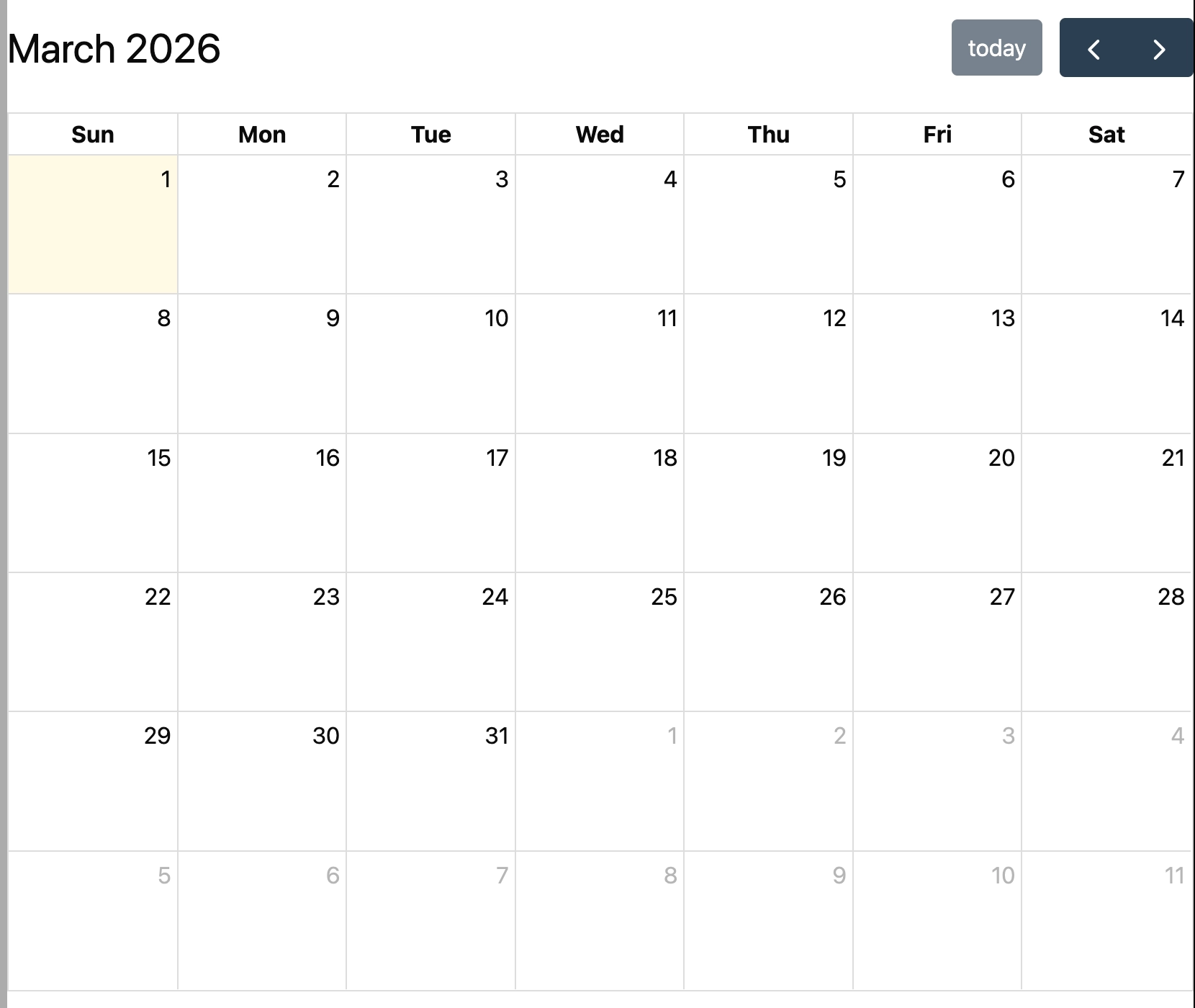
위와 같이 월별 달력이 간단하게 만들어진걸 확인 가능하다.
multiMonth 적용
다음으로 멀티 달력을 사용해보았다.
import FullCalendar from '@fullcalendar/react';
import multiMonthPlugin from '@fullcalendar/multimonth';

import '@/components/customUi/monthly-calendar.css';

const MonthlyCalendar = () => {
  return (
    <div className="">
      <FullCalendar
        plugins={[multiMonthPlugin]}
        initialView="multiMonthYear"
        multiMonthMaxColumns={1}
        customButtons={{
          customToday: {
            text: '오늘',
          },
        }}
        headerToolbar={{ left: 'title', right: 'customToday' }}
      />
    </div>
  );
};

export default MonthlyCalendar;- multiMonth 플러그인을 추가하여 plugins와 initialView를 변경해주었다.
- multiMonthMaxColumns 속성은 한 행에 몇개의 월이 보이게 할 것인지 설정하는 부분이다.
- headerToolbar 에 추가되는 버튼을 커스텀 하고 싶은 경우 위와 같이 customButtons 속성을 사용해 수정 가능하다.
- 별도의 css 파일을 작성하여 기본 스타일이 재정의 될 수 있도록 하였다.
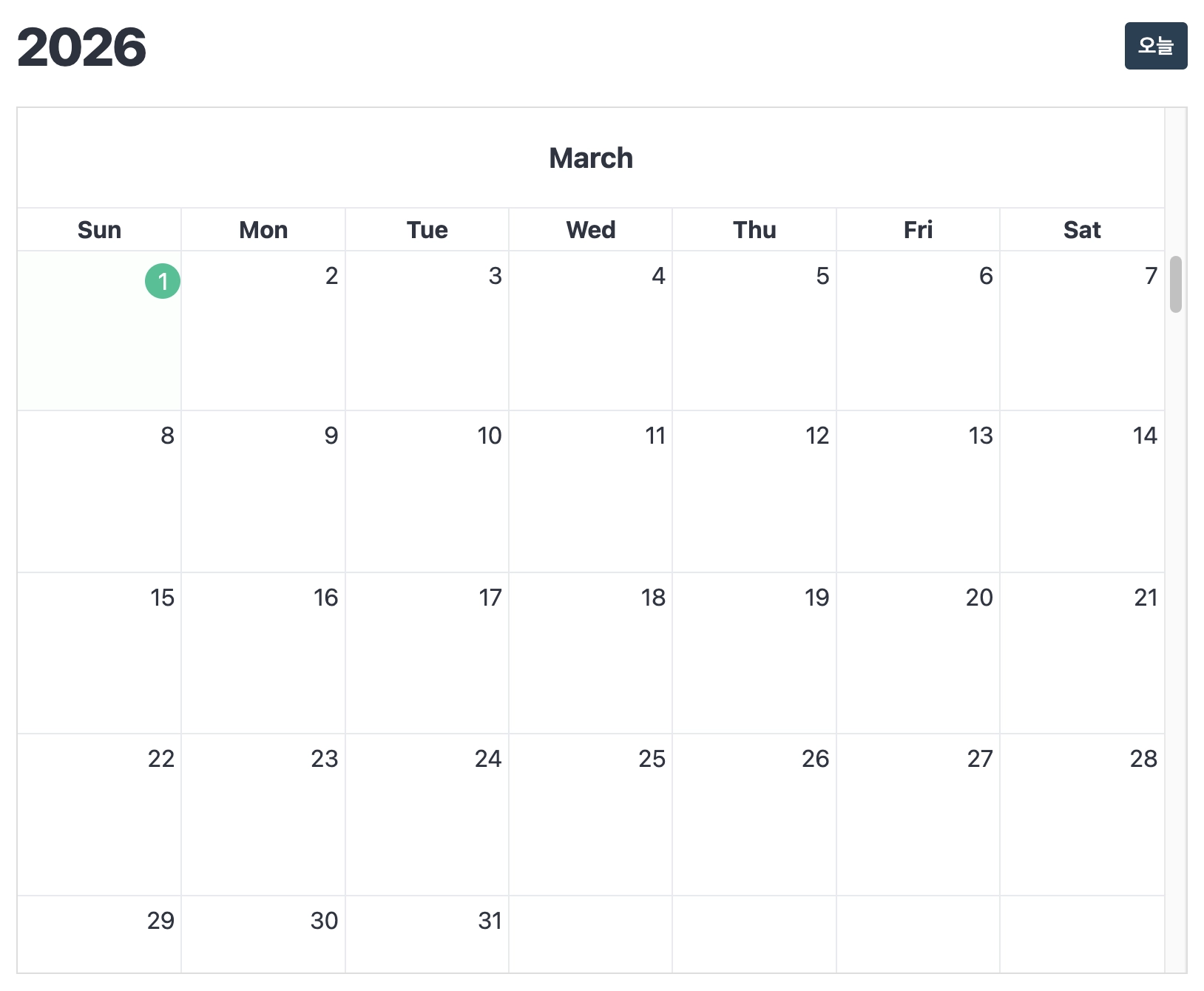

위와 같이 스크롤 하면 이전/다음 달력을 확인 가능하다.
상단 타이틀과 기본 CSS 커스텀
기존 FullCalendar 의 멀티 달력은 스크롤 시 각 달력 사이에 월에 대한 정보와 요일에 대한 영역이 보여지고 있었는데, 이부분을 상단에 보이도록 수정하고 싶었다.

문제가 되는 영역을 안 보이게 하는 것은 간단하게 해당 요소를 display: none; 해주는 걸로 해결되었다.
/* 각 월 제목 영역 숨김 */
.fc .fc-multimonth-title {
  display: none;
}

/* 요일 헤더 숨김 */
.fc .fc-multimonth-header-table {
  display: none;
}
다음으로 MonthlyCalendar 컴포넌트 안에 FullCalendar 컴포넌트만 있었는데 이 구조를 수정하여 헤더 영역을 별도로 만들어 주었다.
const WEEK_DAYS = ['Sun', 'Mon', 'Tue', 'Wed', 'Thu', 'Fri', 'Sat'];

const MonthlyCalendar = () => {
	return (
	  <div className="flex flex-col h-full justify-center">
	    {/* 캘린더 헤더 영역 */}
	    <div className="flex justify-between mx-4 px-2 pb-4">
	      <div className="customTitle">2026.03</div>
	      <button
	        type="button"
	        className="customToday-Btn shadow-md"
	        onClick={() => alert("today")}
	      >
	        Today
	      </button>
	    </div>
	    {/* 캘린더 영역 */}
	    <div className="border-2 mx-4 rounded-4xl overflow-auto mb-8 shadow-lg">
	      <div className="flex f-full bg-background border-b">
	        {WEEK_DAYS.map(day => (
	          <p key={day} className="flex flex-1 w-full h-10 items-center justify-center">{day}</p>
	        ))}
	      </div>
	      <FullCalendar
	        plugins={[multiMonthPlugin]}
	        initialView="multiMonthYear"
	        multiMonthMaxColumns={1}
	        headerToolbar={{ left: '', right: '' }}
	      />
	    </div>
	  </div>
	);
}- 캘린더 헤더 영역에 calendarTitle (YYYY.MM) 과 today 버튼이 들어가도록 수정 (아래에서 추가 수정 예정)
- 캘린더 영역에 WEEK_DAYS.map() 을 통해 요일에 대한 영역 추가
- FullCalendar 에 있던 customButtons 속성은 삭제해주고, headerToolbar 속성은 아예 삭제하면 오히려 기본값이 보여지고 있어서 빈값을 지정한 상태로 두었다.
이제 calendarTitle (YYYY.MM) 에 대한 값을 가져오기 위해 개발자 도구를 사용하여 FullCalendar의 요소들을 하나씩 확인했고, 각 월별 달력 div 요소의 data-date 속성에 년도와 월에 대한 데이터가 있는 걸 확인했다.

다음으로 저 요소들 중 현재 보여지는 달력이 어떤 요소인지 알아내서 해당 요소의 data-date 속성의 값을 가져와야 했는데, 이와 관련된 개발 경험이 없었기에 좋은 방안이 생각나질 않았고 codex의 도움을 받아 IntersectionObserver() API 를 알게 되어 바로 적용해보았다.
IntersectionObserver() 에 대해서 추가로 참고했던 포스팅
const MonthlyCalendar = () => {
  const wrapRef = useRef<HTMLDivElement | null>(null);
  const calendarRef = useRef<FullCalendar | null>(null);
  const [calendarTitle, setCalendarTitle] = useState('');

  useEffect(() => {
    const root = wrapRef.current;
    if (!root) return;
    const scroller = root.querySelector('.fc-scroller') as HTMLElement;
    const monthCards = Array.from(root.querySelectorAll('div[data-date]')) as HTMLElement[];

    const observer = new IntersectionObserver(
      monthCards => {
        monthCards.forEach(card => {
          if (card.isIntersecting && card.target instanceof HTMLElement) {
            const date = card.target.dataset.date?.replace('-', '.');
            if (!date) return;
            setCalendarTitle(date);
          }
        });
      },
      { root: scroller, threshold: 0.8 },
    );

    monthCards.forEach(card => observer.observe(card));
  }, []);

  return (
    <div ref={wrapRef} className="flex flex-col h-full justify-center">
      {/* 캘린더 헤더 영역 */}
      <div className="flex justify-between mx-4 px-2 pb-4">
        <div className="customTitle">{calendarTitle}</div>
        <button
          type="button"
          className="customToday-Btn shadow-md"
          onClick={() => calendarRef.current?.getApi().today()}
        >
          Today
        </button>
      </div>
      {/* 캘린더 영역 */}
      <div className="border-2 mx-4 rounded-4xl overflow-auto mb-8 shadow-lg">
	      ...요일 부분 생략
        <FullCalendar
          ref={calendarRef}
          plugins={[multiMonthPlugin]}
          initialView="multiMonthYear"
          multiMonthMaxColumns={1}
          headerToolbar={{ left: '', right: '' }}
        />
      </div>
    </div>
  );
};

export default MonthlyCalendar;- data-date 속성의 값(YYYY.MM)을 가져오기 위해 dom 요소 탐색시 해당 컴포넌트 내에서만 탐색할 수 있도록 wrapRef 변수 생성 및 최상위 div에 ref 연결 (중복 컴포넌트가 없다면 필수는 아니지만 탐색 범위를 좁혀준다.)
- today 버튼 클릭시 FullCalendar 의 today() 이벤트가 실행 될 수 있도록 calendarRef 변수 생성 및 FullCalendar에 ref 연결. Today 버튼의 onClick 속성에도 today() 실행 로직 추가
- 현재 보여지는 달력 요소의 data-date 속성의 값(YYYY.MM)을 저장할 calendarTitle 상태 변수 생성
- IntersectionObserver()는 실제 DOM 요소를 대상으로 동작하기 때문에 화면이 모두 렌더링 되고 난 이후에 실행될 수 있도록 useEffect() 추가
- 감시할 영역에 해당하는 DOM 요소를 scroller 변수에 대입
- 감시할 대상에 해당하는 DOM 요소들을 monthCards 변수에 대입
- new IntersectionObserver() 를 통해 감시자(=observer)를 생성 하는데, 첫번째 인자로 감시 대상과 내부에 필요한 로직을 정의하여 콜백 함수로 넘겨주고, 두번째 인자로 감시 행동에 대한 옵션을 정의하여 넘겨준다.
- 첫번째 인자로 넘기는 콜백 함수 안에서 isIntersecting 속성을 통해 가시성 범위 내에 감시 대상이 포함되는 경우 해당 요소의 YYYY.MM 정보를 calendarTitle에 저장 해준다.
- observer.observe() 로 감시가 시작되도록 해준다.
최종적으로 수정된 전체 코드와 화면은 다음과 같다.
import FullCalendar from '@fullcalendar/react';
import multiMonthPlugin from '@fullcalendar/multimonth';
import { DayText } from '@/components/customUi';
import { weekText } from '@/assets/mockData';

import '@/components/customUi/monthly-calendar.css';
import { useEffect, useRef, useState } from 'react';

const MonthlyCalendar = () => {
  const wrapRef = useRef<HTMLDivElement | null>(null);
  const calendarRef = useRef<FullCalendar | null>(null);
  const [calendarTitle, setCalendarTitle] = useState('');

  useEffect(() => {
    const root = wrapRef.current;
    if (!root) return;
    const scroller = root.querySelector('.fc-scroller') as HTMLElement;
    const monthCards = Array.from(root.querySelectorAll('div[data-date]')) as HTMLElement[];

    const observer = new IntersectionObserver(
      monthCards => {
        monthCards.forEach(card => {
          if (card.isIntersecting && card.target instanceof HTMLElement) {
            const date = card.target.dataset.date?.replace('-', '.');
            if (!date) return;
            setCalendarTitle(date);
          }
        });
      },
      { root: scroller, threshold: 0.8 },
    );

    monthCards.forEach(card => observer.observe(card));
  }, []);

  return (
    <div ref={wrapRef} className="flex flex-col h-full justify-center">
      <div className="flex justify-between mx-4 px-2 pb-4">
        <div className="customTitle">{calendarTitle}</div>
        <button
          type="button"
          className="customToday-Btn shadow-md"
          onClick={() => calendarRef.current?.getApi().today()}
        >
          Today
        </button>
      </div>
      <div className="border-2 mx-4 rounded-4xl overflow-auto mb-8 shadow-lg">
        <div className="flex f-full bg-background border-b">
          {WEEK_DAYS.map(day => (
            <p key={day} className="flex flex-1 w-full h-10 items-center justify-center">{day}</p>
          ))}
        </div>
        <FullCalendar
          ref={calendarRef}
          plugins={[multiMonthPlugin]}
          initialView="multiMonthYear"
          multiMonthMaxColumns={1}
          headerToolbar={{ left: '', right: '' }}
        />
      </div>
    </div>
  );
};

export default MonthlyCalendar;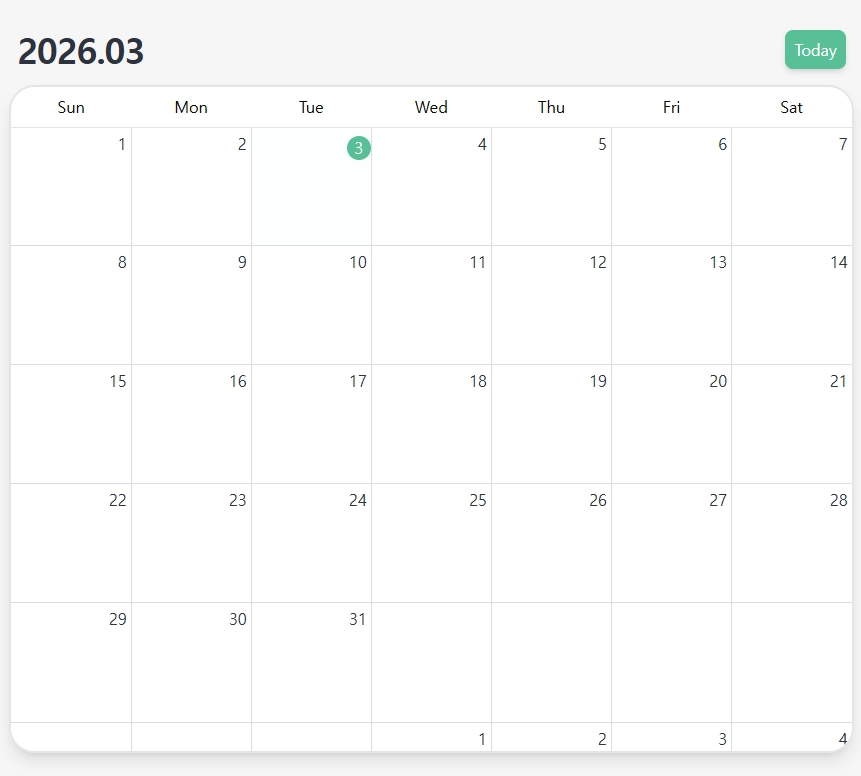
'Front' 카테고리의 다른 글
| 프론트 환경 설정(ESLint, Prettier, Axios, Tanstack Query, MSW, Shadcn UI) (0) | 2026.01.21 |
|---|---|
| 프론트 환경 설정(PNPM, Vite, React, TypeScript, TailwindCss) (1) | 2026.01.21 |
